Query APIs
Extenda Retail provides advanced query APIs for all master data entities, supporting free-text search, filtering, and joins as needed.
Query APIs are provided as GraphQL services, with individual APIs for each entity and advanced APIs for querying entire data graphs.
- Master Data
- Complete Item
- Item
- Price Specification
- Item Identifiers
- Item Links
- Item Categories
- Assortment Policy
- Promotion
- Deposit And Fee Rule
- Print Schedule
- Changes
If your ERP or master data system does not support search, Hii Retail can provide this functionality. To enable search, integrate all relevant entities as input to Hii Retail. The data will then be available for search via the query APIs, which use GraphQL for flexible queries.
You can limit the data returned by specifying which properties to include in your GraphQL query.
Example: Query for Item and Price data by barcode. GraphQL lets you specify the data you want and returns a complete graph, e.g.:
"data": {
    "itemIdentifier": {
        "value": "7622201823085",
        "itemId": "203018",
        "item": {
            "id": "203018",
            "name": "THE NATURAL CONFECT PARTY MIX 130G",
            "priceSpecifications": {
                "nodes": [
                    "priceSpecification": {
                        "value": "11.99",
                        "priceType": "Sales",
                        "validFrom": "2021-10-01T07:30:23.140Z"
                        "validTo": null,
                        "minPrice": "10.00",
                        "maxPrice": "22.00"
                    },
                    "priceSpecification": {
                        "value": "9.35",
                        "priceType": "Purchase",
                        "validFrom": "2020-02-01T07:20:13.120Z"
                        "validTo": null
                    },
                    "priceSpecification": {
                        "value": "12.00",
                        "priceType": "Default",
                        "validFrom": "2020-01-01T00:00:00.000Z"
                        "validTo": null
                    }
                ]
            }
        }
    }
}
Playground
To use the GraphQL query APIs:
-
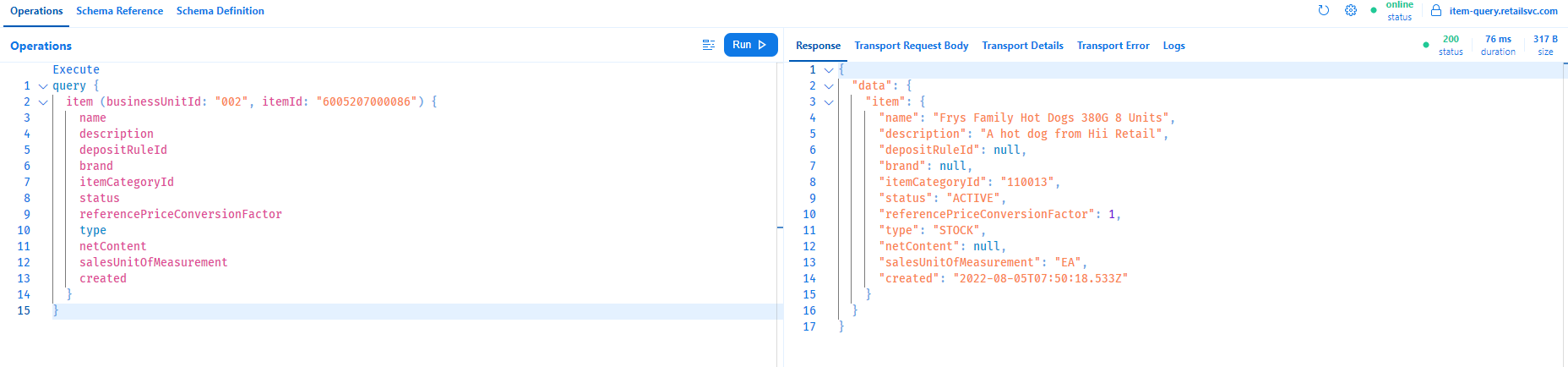
Use the playground to test queries before integrating.
-
Provide a valid token in the
Authorizationheader (Bearertype).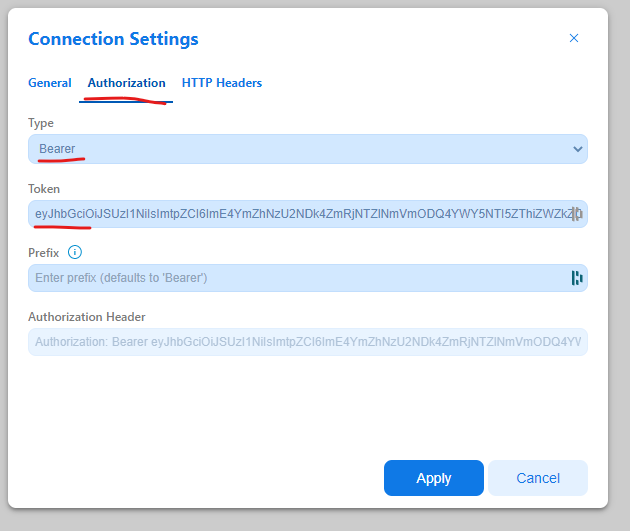
-
Use
https(nothttp) for the playground URL.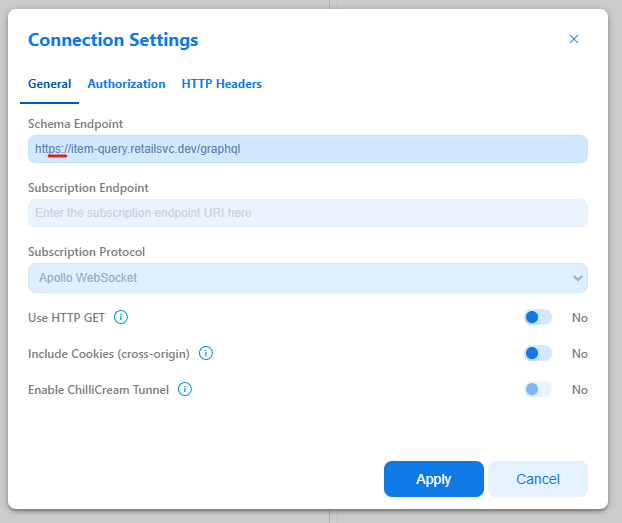
-
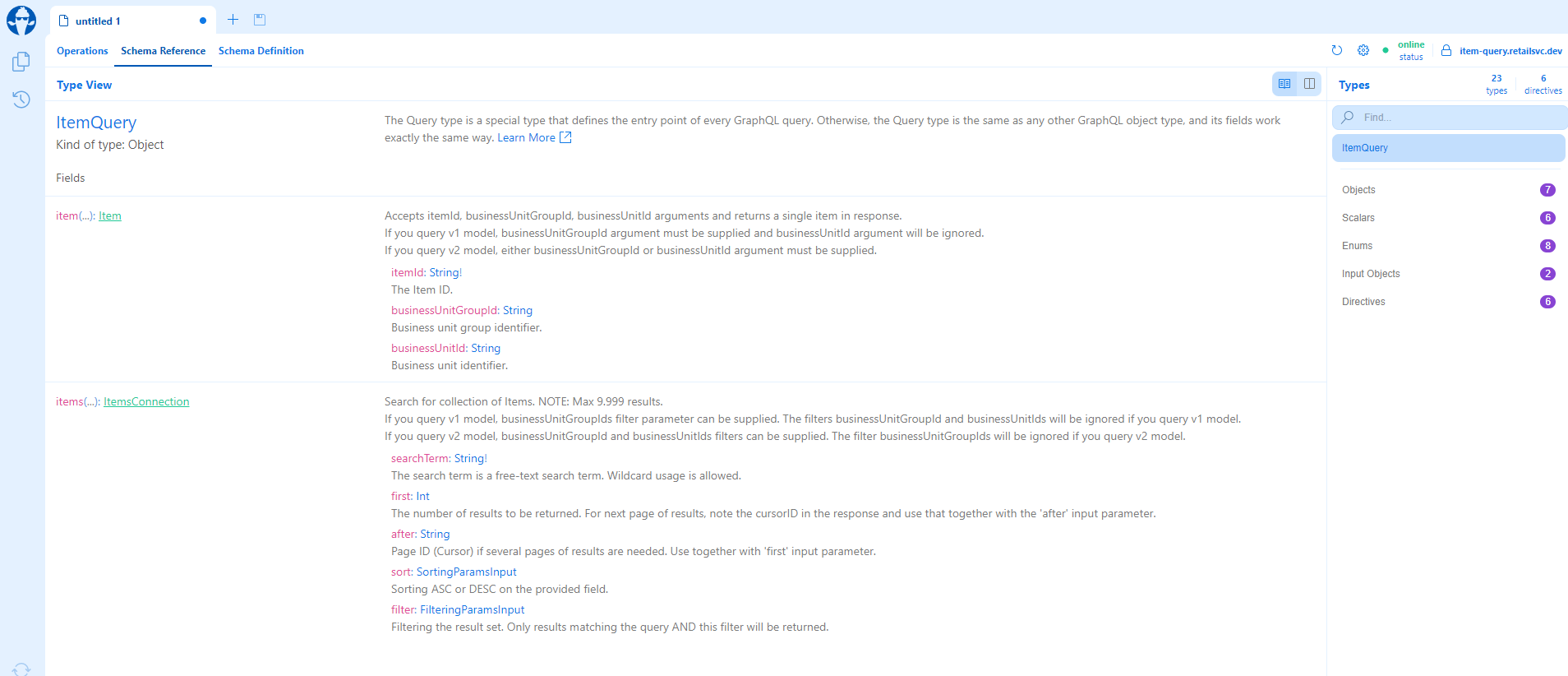
The schema and docs are visualized in the playground when a valid token is provided.
Postman
Postman is a common tool for API integration.
Tips for using Postman with GraphQL Query APIs:
-
Provide the correct
Authorizationheader (Bearer Token).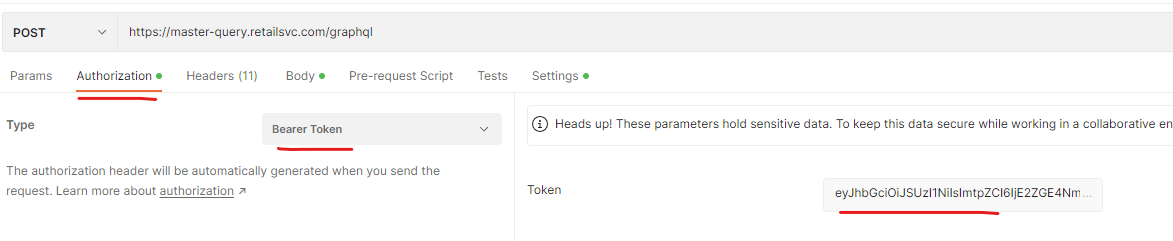
-
Provide the correct URL to the API without a trailing slash.
-
Select
GraphQLas the body format. -
Ensure the schema is fetched and use
POSTrequests.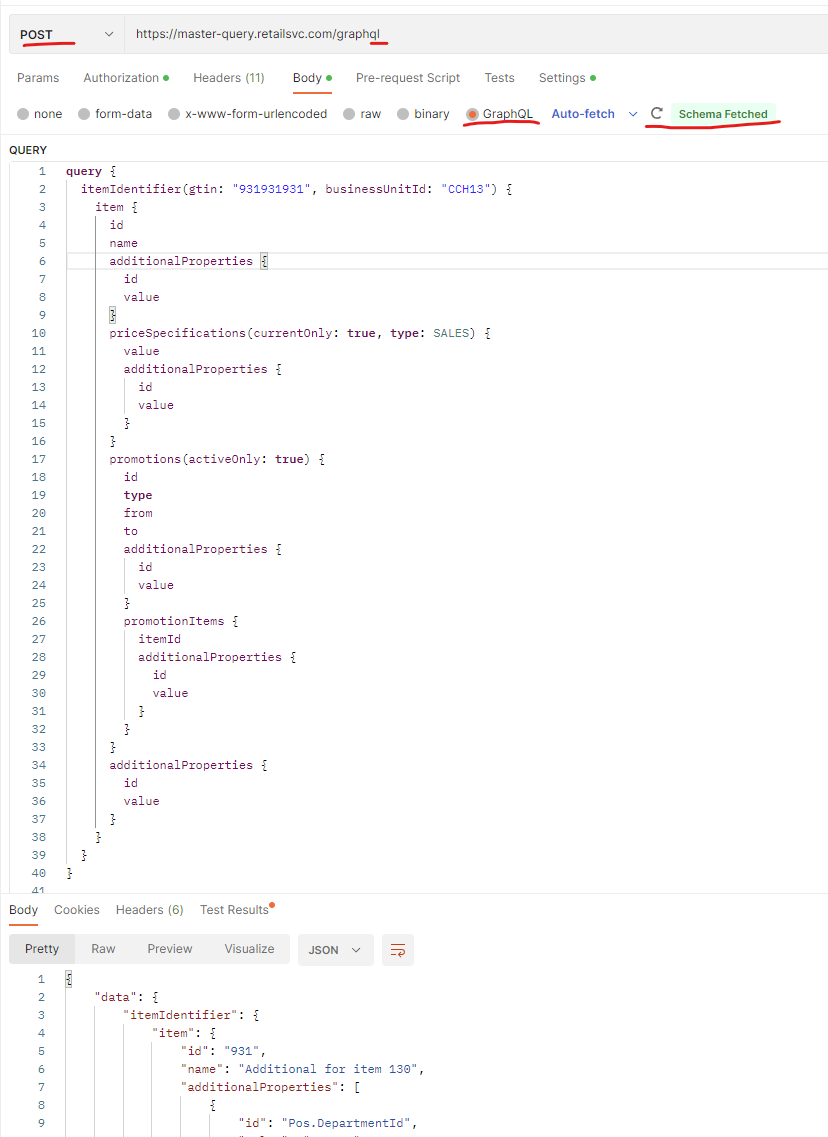
Example: Search for Items by Item Identifier
To search for Items by barcode or Item Identifier, use the Master Data Query API.
Example query to get Item Id, Name, Created Date, and Price Specifications:
query {
  itemIdentifier(gtin:"7622201823085", businessUnitGroupId: "987654"){
    value
    itemId
    item {
      entityMetadata {
        id
        name
        created
      }
      priceSpecifications {
        nodes {
          value
          itemId
          priceType
          validFrom
          validTo
          minPrice
          maxPrice
        }
      }
    }
  }
}
Example: Search using Complete Item Query API
The Complete Item Query API is available if your tenant uses the Complete Items feature.
query completeItems {
  completeItems(
    first: 10
    searchTerm: "name: \"paper\""
    filter: {
      assortmentPolicyType: IN_ASSORTMENT
      businessUnitId: "STORE_A"
      status: ACTIVE
    }
  ) {
    nodes {
      assortmentPolicyType
      brand
      correlationId
      createdBy
      description
      id
      images {
        heightInPixels
        intendedAudience
        modified
        size
        url
        widthInPixels
      }
      itemCategoryId
      itemIdentifiers {
        type
        value
        isPrimary
      }
      modifiedBy
      name
      netContent
      priceSpecifications {
        isCurrent
        isMandatory
        maxPrice
        minPrice
        modifiedBy
        promotionId
        taxableGroupId
        type
        value
      }
      additionalProperties {
        dataType
        name
        value
      }
    }
  }
}
Search capabilities
Free-text search
This section describes advanced free-text search capabilities using query string syntax.
Recommendation: Avoid heavy use of special syntax (wildcards, regex) unless necessary, as it can impact performance.
Invalid syntax in searchTerm returns an error; handle this in your search components.
Query String Syntax
A query string uses specific syntax with operators (AND, OR). The default operator is OR.
A query string can be a single word (bottle), a phrase in double quotes ("bright and bubbly"), or use operators.
.keyword Fields
A field with .keyword suffix (e.g., name.keyword) matches the exact value, useful for structured content (e.g., email addresses).
name: "Fizzy Drink 1"matches if the phrase appears anywhere inname.name.keyword: "Fizzy Drink 1"matches only if the field is exactly that value..keywordis required for wildcards.
Reserved Characters
Escape reserved characters with a backslash. In JSON, use two backslashes. Reserved: + - = && || > < ! ( ) { } [ ] ^ " ~ * ? : \ /
Examples:
\(1\+1\)\=2— searches for (1+1)=2\\(1\\+1\\)\\=2— same query in JSON
Boolean Operators
Supported: + (must be present), - (must not be present), AND, OR, NOT.
Examples:
bottle can +soda -fizzy—sodamust be present,fizzymust not,bottleandcanare optional((bottle AND soda) OR (can AND soda) OR soda) AND NOT fizzy— same as above, using operators
Field Names
businessUnitId.keyword:1-1— exact matchstatus: ACTIVE— containsACTIVEname:(bottle OR flask)— containsbottleorflaskdescription: "heavy duty fabric"— contains the exact phraseassortment\*:(IN_ASSORTMENT, C)— matches fields likeassortmentTypeorassortmentTags_exists_:description— field has any non-null value
Search Multiple Fields
businessUnitId:AW001 AND status:ACTIVE— both fields must match
Wildcards
p?nk XX*—?for single character,*for zero or morefield:*— matches any value (including empty)
Wildcards at the start of a word (e.g.,
*ing) are not supported for performance reasons.
Regular Expressions
See Elasticsearch regex syntax.
name:/joh?n(ath[oa]n)/— regex pattern
Patterns like
/.*n/are not supported for performance reasons.
Fuzziness
quikc~ brwn~ foks~3— fuzzy queries with edit distance (default 2)app*~1— mixing fuzzy and wildcard is not supported
Proximity Searches
"fox quick"~5— words can be up to 5 words apart or in different order
Ranges
Ranges for date, numeric, or string fields:
validFrom:[2022-01-01 TO 2022-12-31]— inclusivenetContent:[1 TO 5]— numbers 1 to 5assortmentTags:{A TO D}— exclusivenetContent:[10 TO *]— from 10 upwardsreferencePriceConversionFactor:>1— greater than 1referencePriceConversionFactor:<=0.9— less than or equal to 0.9
Boosting
Use ^ to boost relevance:
bottle^2 soda— prioritizebottle"soda bottle"^2— boost phrase(soda can)^4— boost group
Grouping
(bottle OR can) AND soda- multiple terms or clauses can be grouped together with parentheses to form sub-queriesstatus:(ACTIVE OR DISCONTINUED) name:(bright and bubbly)^2- groups can be used to target a particular field, or to boost the result of a sub-query
Faceting and filtering
The Master and Complete Item query APIs support an optional filter argument: expression.
This allows advanced KQL-based filtering on top of the standard faceting and filtering flow, providing full control for building complex filter expressions—especially when working with additional properties.
For example, imagine a customer is looking for a jacket in color Blue and size M or S. These conditions are sent in the filter argument using a KQL expression. The backend returns only items whose additional properties match Color = Blue and Size = M or S.
The facetingParams argument (and the facets returned in the response) allow you to build the dynamic filters often found in e-commerce browsing, while the filter expression applies the selected filters so that only matching items are returned.
facetingParams
Defines which standard properties (e.g. itemCategoryId, brand) and additional properties (e.g. Color, Size or Style) should be used to calculate top facet values displayed in the UI.
facetingParams {
  propertyValuesCount: Int = 10
  properties: [FacetingProperty!]
}
propertyValuesCount
- Default: 10
- Determines how many top values are returned for each facet.
- Values are ranked by number of items (descending).
properties
Each entry defines a facet source:
| Field | Description |
|---|---|
isAdditionalProperty | true → property comes from additional properties. |
propertyName | If isAdditionalProperty = true: use the ID of the additional property. If false: use the standard property name. |
expression
A Kibana Query Language (KQL) string applied to the actual dataset before faceting options have been calculated. Use this to narrow search results based on user-selected filter conditions, including complex AND/OR logic.
For the full set of supported options: Filter expression syntax (KQL) covers the general syntax (operators, escaping, case sensitivity, dates, grouped matching), and Complete Item filter expression reference covers the Complete Item field reference and its specific limitations.
How It Works
facetingParams→ determines which properties will appear as available filter options (facets).expression→ applies the user's actual selections to the results via a KQL expression.
To return facet data, the query must request facets:
facets {
  propertyName
  values {
    value
    count
  }
}
Example 1 — Basic Faceting (no expression)
query {
  completeItems(
    searchTerm: "*"
    first: 10
    businessUnitId: "{{businessUnitId}}"
    facetingParams:  {
       propertyValuesCount: 5
       properties: [
        { propertyName: "brand" isAdditionalProperty: false },
        { propertyName: "Color" isAdditionalProperty: true }
      ]
    }
  ) {
    totalCount
    pageInfo {
      endCursor
      hasNextPage
    }
    facets {
      propertyName
      values {
        value
        count
      }
    }
    nodes {
      id
      name
      type
      businessUnitIds
      additionalProperties {
        ...
      }
      priceSpecifications {
       ...
      }
      itemIdentifiers {
        ...
      }
    }
  }
}
User sees available filters for brand and color, based on the top 5 values.
Example 2 — Filter by additional properties
query {
  completeItems(
    searchTerm: "*"
    first: 10
    businessUnitId: "{{businessUnitId}}"
    facetingParams:  {
       propertyValuesCount: 9
       properties: [
        { propertyName: "brand" isAdditionalProperty: false },
        { propertyName: "Color" isAdditionalProperty: true }
      ]
    }
    filter: {
      expression: "additionalProperties:{ id: Color and value: Blue } and additionalProperties: {id: Size and (value: S or value: M)}"
    }
  ) {
    totalCount
    pageInfo {
      endCursor
      hasNextPage
    }
    facets {
      propertyName
      values {
        value
        count
      }
    }
    nodes {
      id
      name
      type
      businessUnitIds
      additionalProperties {
        ...
      }
      priceSpecifications {
       ...
      }
      itemIdentifiers {
        ...
      }
    }
  }
}
- First, the filter is applied to the dataset; then unique values for properties (facets) are calculated.
- The query then filters items to only those where Color = Blue and Size = S or M.
Example 3 — Combining Standard and Additional Filters
query {
  completeItems(
    searchTerm: "*"
    first: 10
    businessUnitId: "{{businessUnitId}}"
    facetingParams:  {
       propertyValuesCount: 3
       properties: [
        { propertyName: "brand" isAdditionalProperty: false},
        { propertyName: "Color" isAdditionalProperty: true },
        { propertyName: "Size" isAdditionalProperty: true },
      ]
    }
    filter: {
      expression: "brand: PnP AND additionalProperties:{ id: Color and value: Green } and additionalProperties: {id: Size and (value: 36 or value: 37)}"
    }
  ) {
    totalCount
    pageInfo {
      endCursor
      hasNextPage
    }
    facets {
      propertyName
      values {
        value
        count
      }
    }
    nodes {
      id
      ...
      priceSpecifications {
        ...
      }
      itemIdentifiers {
        ...
      }
    }
  }
}
This allows highly granular filtering behavior beyond traditional facet-based selections.
Summary
facetingParamsdefines which fields will become facets and how many values are shown.expressionapplies complex KQL filters to the result set.- Always request
facetsin the query if you want them returned.