Customer Order Search
Customer order search is controlled by the pos.customerOrder configuration in the cha.settings.v1 schema.
Use this feature when you want to let POS users search for existing customer orders from the Checkout App.
Configuration
Configuration options:
- searchEnabled (optional) - Enables customer order search functionality in the POS.
For customer order creation functionality, see Customer Order. For the CCC configuration reference, see CCC Configurations.
Behavior
When searchEnabled is enabled, the customer order search entry points are available in the POS UI.
When it is disabled or omitted, the customer order search functionality is hidden.
Example
{
    "pos": {
        "customerOrder": {
            "enabled": true,
            "searchEnabled": true
        }
    }
}
Access and Permissions
Customer Order Search operations require an IAM token.
Search requests are authorized with IAM and require the following permissions (depending on operation):
cor.customer-order.search- Search customer orderscor.customer-order.get- Read customer order details used by previewcor.customer-order.create- Create/retrieve customer order in checkout flowcor.customer-order.delete- Delete customer order from search results
Entry Points
Customer Order Search can be opened from:
- Shortcuts menu
- Advanced Transaction Search form
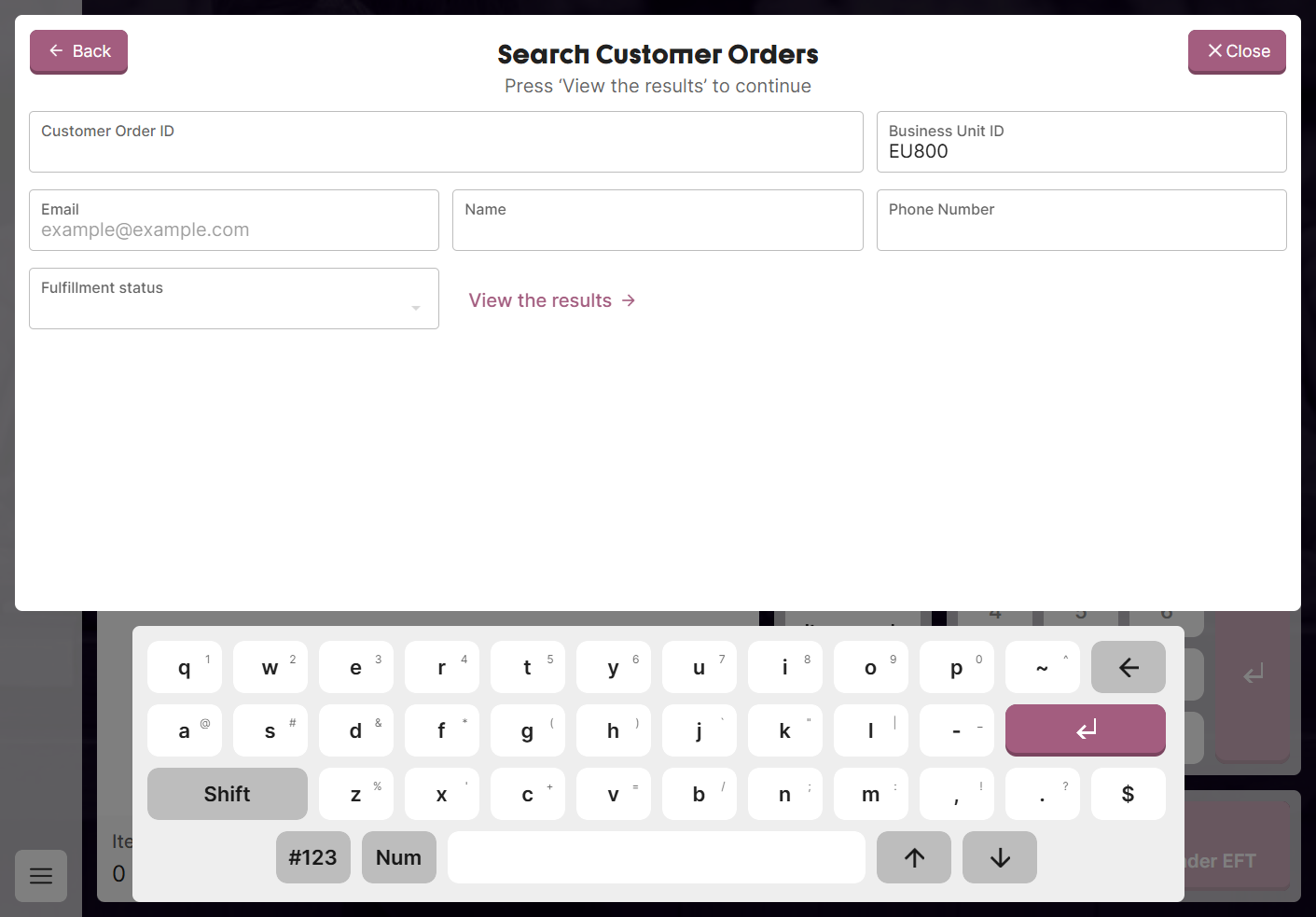
Search Form Screen
The entry point for the search flow.
- Let users enter search criteria (customer order ID, email, name, phone, status)
- Business Unit ID is required and prefilled with the current store
Actions:
- Submit – navigate to Results screen with search parameters
- Back – return to parent flow (Shortcuts menu or Transaction Search)
- Close – close the entire Customer Order Search modal
Screenshot placeholder:
Results Screen
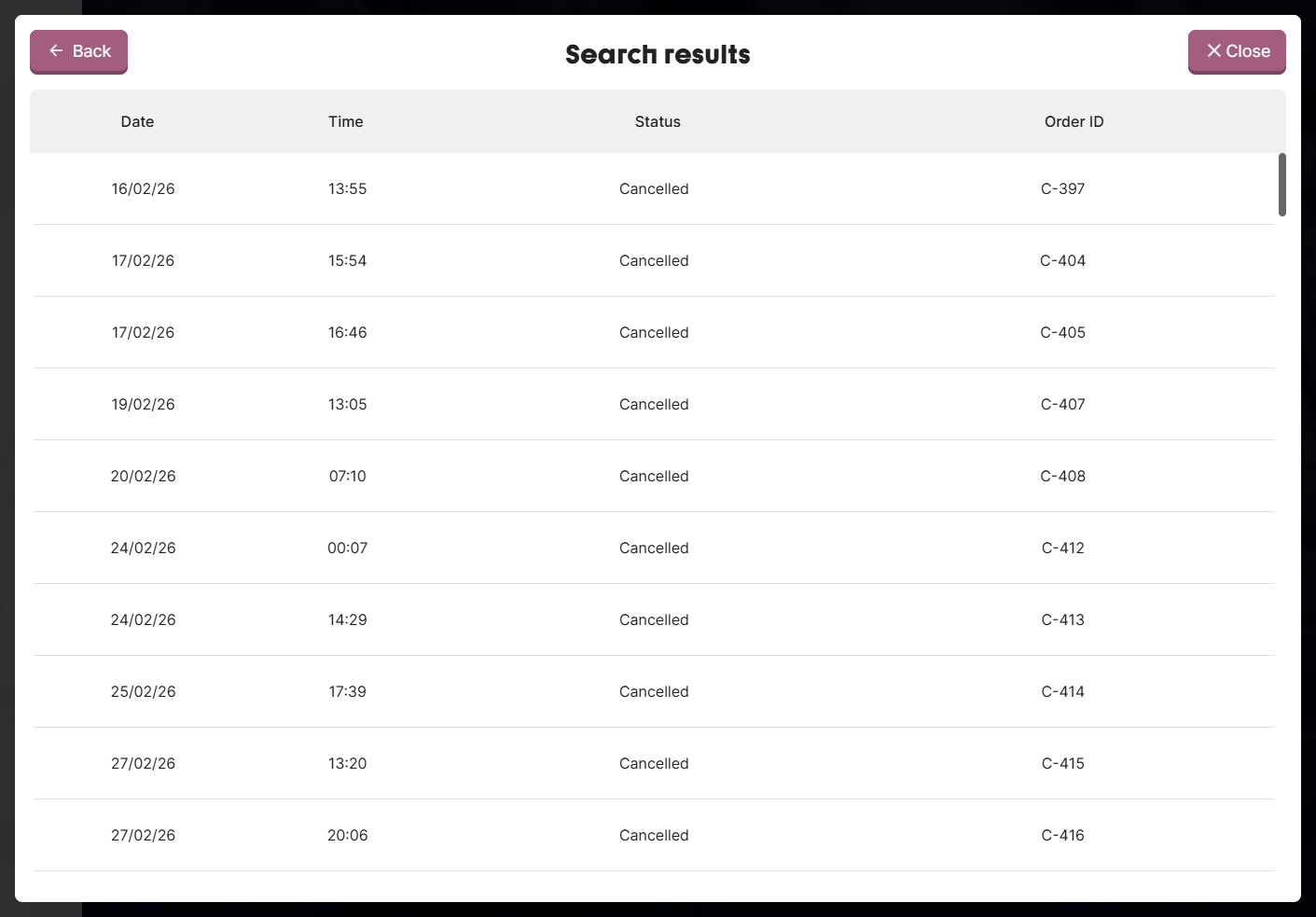
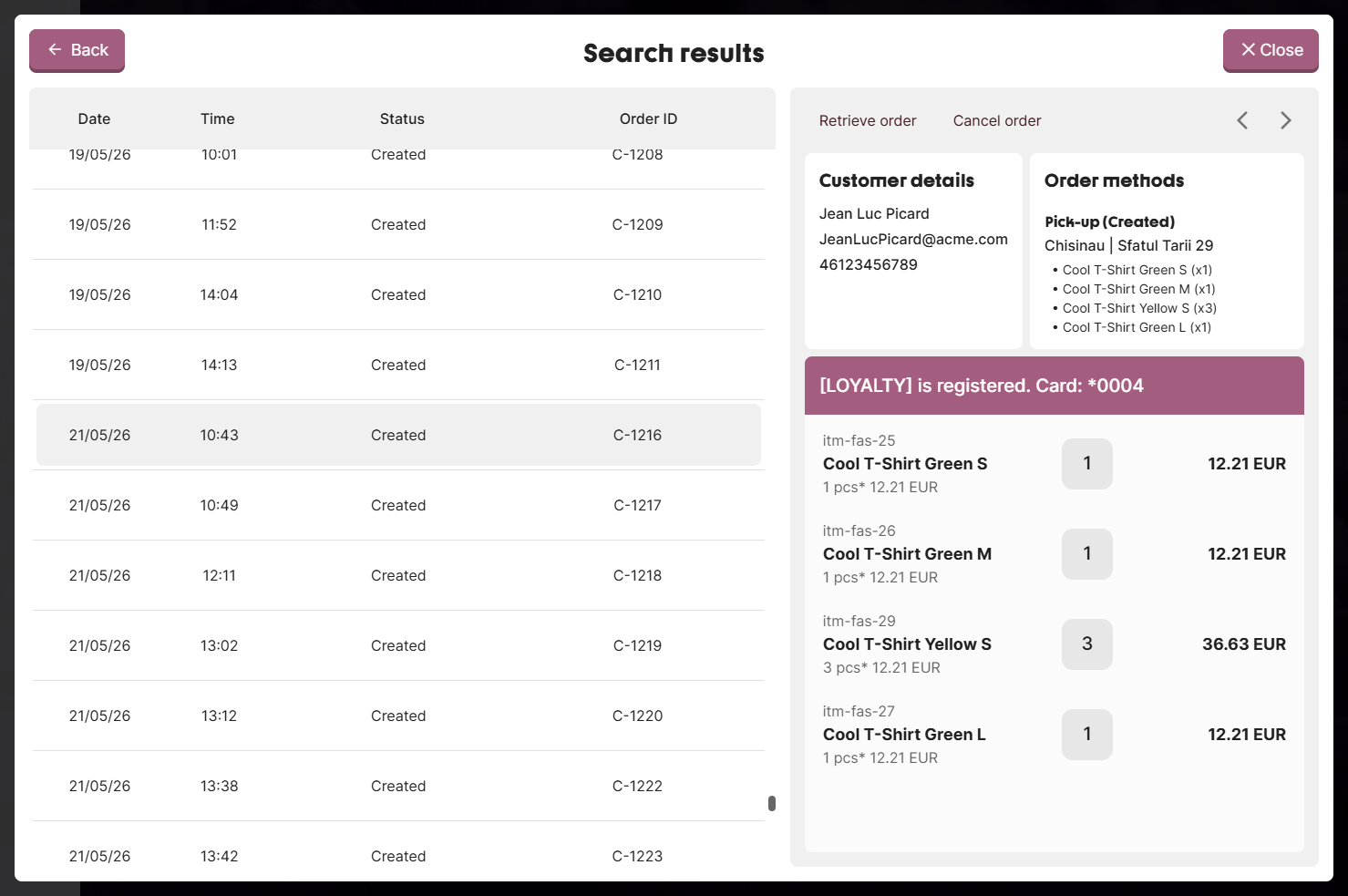
Displays matching orders and selected order details allowing user to inspect order methods and related items.
Features:
-
Clicking a order method highlights the items that belong to that method
-
Selecting another order method updates highlighted items accordingly
-
Show list of orders matching search criteria
-
Display full preview of selected order with order methods and customer details
-
Allow order retrieval and deletion
-
Left panel: scrollable result table (infinite paging)
-
Right panel: order details, actions, and stepper navigation
Actions:
- Select order from table – load details in right panel
- Retrieve – retrieve selected order and close modal
- Cancel * – open cancel confirmation dialog
- Stepper (← →) – navigate between result items
- Back – return to Search Form
- Close – close the entire modal
Note: Cancel action is only avaliable if
cancelAllowedconfiguration is enabled and order status is eitherCREATEDorPAYMENT_PENDING. See configuration documentation for details.
Screenshot placeholder:
Delete Confirmation Screen
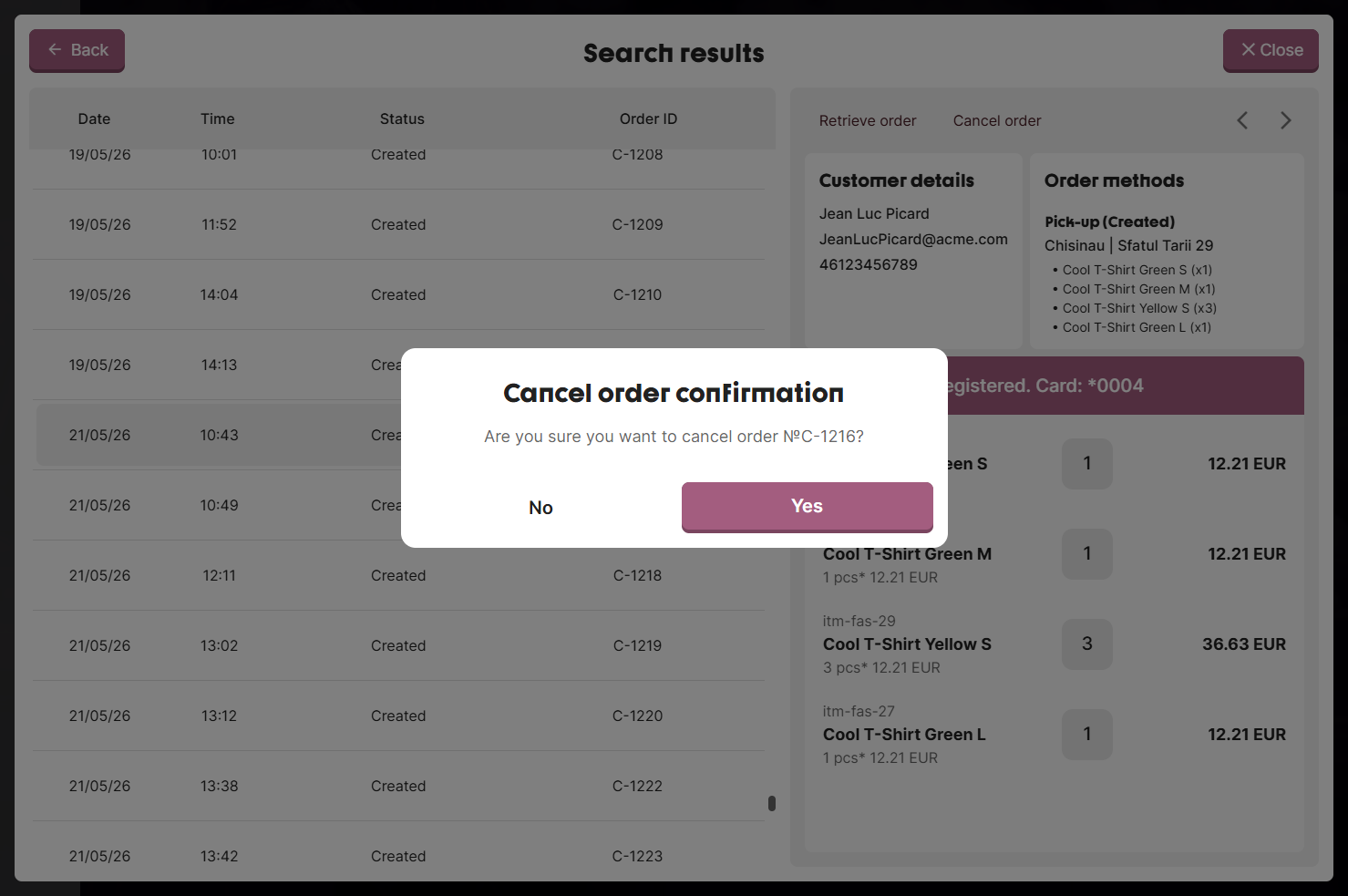
Modal dialog confirming order deletion.
Purpose:
- Warn user before deleting an order
- Show which order is being deleted
Trigger:
- User clicks Delete button on eligible order (status: CREATED, PAYMENT_PENDING)
Actions:
- Confirm (Yes) – delete order and close dialog
- Cancel (No) – close dialog and return to Results
Screenshot placeholder: